
Imagine your evenings filled with your favourite shows, movies, and live events. All from your home. The Boss IPTV box makes this dream real. It gives you instant access to over 33,000 live TV channels, more than 40,000 movies, and 140,000 TV series. All in HD, Full HD, and 4K quality.
This guide is for you, after your recent purchase. Setting up your device might seem hard, but don’t worry. We’ll guide you through each step, from physical connections to software setup. It’s easy to follow.
Prepare for a top-notch streaming experience, without buffering or interruptions. Your journey into a huge library of entertainment starts now. We’re here to make it smooth for you.
Key Takeaways
- Enjoy instant access to a vast library of entertainment.
- Experience seamless streaming with no buffering.
- Follow a straightforward setup process for your device.
- Access over 33,000 live TV channels and 140,000 series.
- Receive 24/7 customer support for any assistance.
1. What Is the Boss IPTV Box and Why Choose It?
The Boss IPTV Box is a top-notch iptv set-top box that changes how you watch TV. It runs on a special Android system, unlike regular boxes. You get instant access to over 33,000 live TV channels, 40,000 movies, and 140,000 TV series in HD, Full HD, and 4K.
This box has powerful hardware for smooth streaming without lag. Its easy-to-use interface lets you find your favourite shows fast. Plus, its strong server ensures a stable connection for a great viewing experience.
Key Features of the Boss IPTV Box
Here are the main reasons to choose the Boss IPTV Box:
| Feature | Description | Benefit |
|---|---|---|
| High-Quality Streaming | Supports HD, Full HD, and 4K content | Enjoy crisp and clear visuals |
| Wide Content Library | Access to 33,000+ live channels | Endless entertainment options |
| Instant Activation | No contracts required | Start watching immediately |
Who Should Use the Boss IPTV Box?
The Boss IPTV Box is great for many people:
- UK Households: Perfect for those looking to cut the cord and reduce traditional cable costs.
- Sports Enthusiasts: Access exclusive live events and sports channels.
- International Viewers: Enjoy diverse global content tailored to your preferences.
With its unbeatable value and ease of use, the Boss IPTV Box is perfect for anyone wanting to improve their home entertainment. For more info on finding the right IPTV solution, visit this guide.
2. Boss IPTV Box Subscription Plans Explained
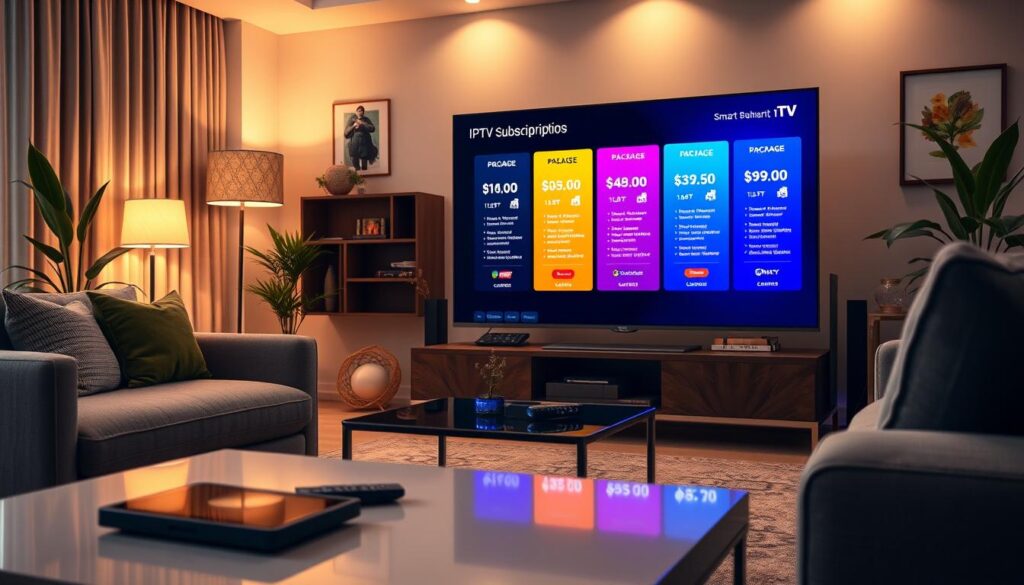
It’s important to know about the Boss IPTV Box subscription plans to get the most out of your viewing. The prices are set up to meet different needs, whether you’re watching alone or with others. We’ll look at single and multi-connection plans to help you pick the best one for you.
Single Connection Plans
1 Connection Pricing
If you’re watching by yourself, the Boss IPTV Box has simple pricing for one connection:
| Duration | Price ($) |
|---|---|
| 1 Months | 15 |
| 3 Months | 34 |
| 6 Months | 44 |
| 12 Months | 69 |
Multi-Connection Plans for Households
For families or people living together, there are multi-connection plans. These offer flexibility and great value:
2 Connections Pricing
| Duration | Price ($) |
|---|---|
| 3 Months | 20 |
| 6 Months | 46 |
| 12 Months | 74 |
| 24 Months | 115 |
3 Connections Pricing
| Duration | Price ($) |
|---|---|
| 3 Months | 34 |
| 6 Months | 69 |
| 12 Months | 99 |
| 24 Months | 145 |
4 Connections Pricing
| Duration | Price ($) |
|---|---|
| 3 Months | 40 |
| 6 Months | 89 |
| 12 Months | 120 |
| 24 Months | 170 |
Knowing these iptv subscription options helps you choose the right one for your viewing habits and household size.
3. Preparing Your Boss IPTV Box for Setup
To start your streaming adventure, first unbox and inspect your Boss IPTV Box. This step is key to ensure you have all necessary items for a hassle-free setup.
Unboxing and Checking Contents
Inside the box, you should find:
- Boss IPTV Box
- Remote control
- HDMI cable
- Power adapter
Double-check that all these parts are there. If something’s missing, reach out to the seller right away.
Equipment You Will Need
Along with the box’s contents, you’ll need a few more things:
- A television with an HDMI port
- A stable internet connection
Having these ready will make setting up easier and improve your viewing.
Internet Speed Requirements
For the best experience, consider your internet speed. Here are the speeds you should aim for:
| Streaming Quality | Minimum Speed |
|---|---|
| SD | 3-5 Mbps |
| HD | 10-15 Mbps |
| 4K | 15-25 Mbps |
For smooth 4K streaming, aim for a connection speed of at least 15-25 Mbps. This will prevent buffering and ensure a great viewing experience.
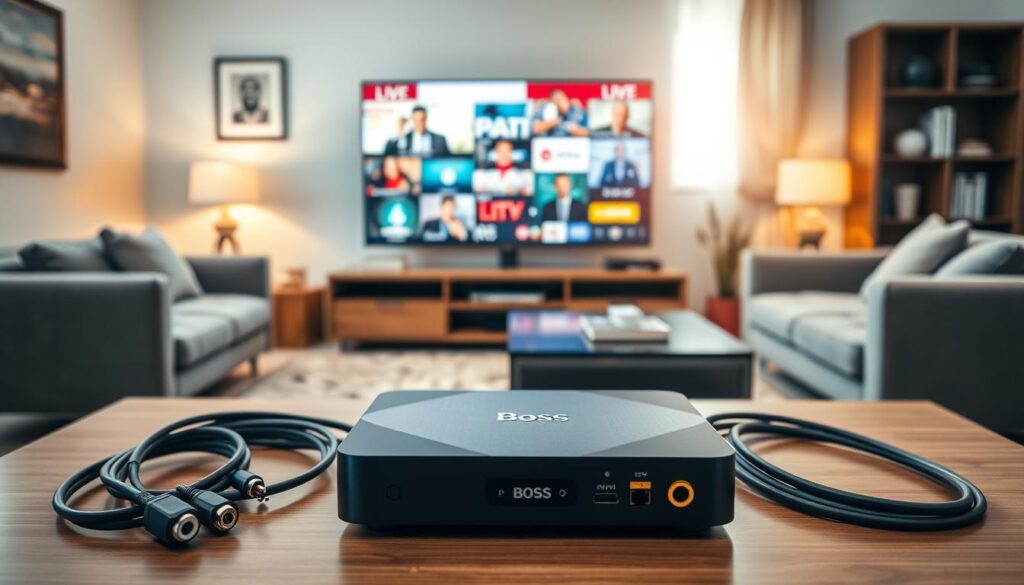
With everything ready, you can now connect your Boss IPTV Box to your TV. For more detailed instructions, check this link.
4. Connecting Your Boss IPTV Box to Your Television
Setting up your smart IPTV box is easy. It lets you stream without any hassle. Just follow these simple steps to connect your Boss IPTV Box to your TV.
Step 1: Establishing the HDMI Connection
First, find the HDMI cable that came with your Boss IPTV Box. Plug one end into the HDMI port on the box. Then, connect the other end to an HDMI port on your TV. This connection is key as it sends both audio and video from your IPTV box to your TV.
Step 2: Powering On Your Device
Next, plug the power adapter into your Boss IPTV Box and into a power outlet. Turn the device on. You’ll see LED lights turn on, showing the box is powered up. This step is vital to get your IPTV box working.
Step 3: Selecting the Correct Input Source
Now, use your TV remote to find the input or source button. This lets you pick the HDMI input where your Boss IPTV Box is plugged in. Once chosen, you’ll see the Boss IPTV boot-up screen. If you don’t see it, check your connections again.
By following these steps, you can easily connect your Boss IPTV Box to your TV. This is just the start of a great streaming journey. For more help, check out this guide for detailed support.
5. Configuring Your Network Connection
To enjoy seamless streaming, setting up your network connection is key. This guide will help you connect your Boss IPTV Box. You can choose between Wi-Fi or Ethernet for a stable connection. Each option has its benefits, so pick the one that suits your viewing needs best.
Connecting via Wi-Fi
Connecting your Boss IPTV Box to Wi-Fi is easy. Just follow these steps:
- Turn on your Boss IPTV Box and go to the network settings.
- Pick your home Wi-Fi network from the list.
- Use the on-screen keyboard to enter your Wi-Fi password.
- Confirm the connection and wait for it to connect.
Once connected, your device will remember the network for next time.
Connecting via Ethernet Cable
For a reliable connection, especially for 4K streaming, use an Ethernet cable. Here’s how:
- Plug one end of the Ethernet cable into your Boss IPTV Box.
- Connect the other end to your router.
- Turn on your device and check the network settings to confirm.
This method usually gives a faster and more stable connection than Wi-Fi.
Verifying Connection Stability
After setting up, check if your connection is stable. You can do this by:
- Running a built-in speed test from the settings menu.
- Checking the signal strength indicator for a strong connection.
- Streaming a video to see if there are any interruptions.
By ensuring your connection is stable, you can enjoy smooth streaming and a better viewing experience.

6. Activating Your Boss IPTV Box Subscription
To enjoy your Boss IPTV Box, you need to activate your subscription. This is easy and lets you use all the device’s features. Here’s how to start:
Step 1: Accessing the Activation Portal
When you turn on your Boss IPTV Box, the activation portal might pop up. If it doesn’t, you can find it in the settings. Look for “Activation” or “Subscription” to continue.
Step 2: Entering Your Subscription Details
In the activation portal, you’ll need to put in your subscription info. This includes:
- Your username
- Your password
- The M3U/XC API portal URL given when you bought it
Enter this info correctly to avoid any problems.
Step 3: Confirming Your Account Setup
After putting in your details, confirm your account. You should see a success screen if it’s right. If not, check your info and try again. This step is key for a iptv box uk service that works well.
After activation, you can enjoy everything your Boss IPTV Box offers. For more help, visit this link.
7. Navigating the Boss IPTV Interface
Navigating the Boss IPTV interface is easy. This guide will show you the main dashboard and its features. You’ll learn how to access live TV, movies, and series. This will improve your streaming experience.
Understanding the Main Dashboard
The main dashboard is designed for easy use. It gives you quick access to your favourite content. Key features include:
- Live TV: Access to real-time broadcasts.
- Movies: A selection of the latest films.
- Series: A library of popular TV shows.
- Settings: Personalise your viewing experience.
Browsing Live TV Channels
To browse live TV channels, go to the Live TV section. Here, you can sort channels by:
| Sorting Method | Description |
|---|---|
| Country | Find channels based on your location. |
| Genre | Sort channels by categories like sports, news, and entertainment. |
| Favourites | Quick access to your preferred channels. |
Accessing the Movies and Series Library
The Boss IPTV box has over 40,000 movies and 140,000 TV series. To explore this vast library, visit the Movies and Series section. You can search for titles or discover new content. The interface makes it easy to find what you’re looking for.
For more information on subscription options, visit Boss IPTV Service.
8. Exploring Content Categories and Streaming Quality
Discover the wide range of content and top-notch streaming quality. The Boss IPTV Box offers something special, especially for sports fans and those who love high-quality visuals.
Live Sports and Exclusive Events
The Boss IPTV Box has a special section for live sports. You get exclusive access to top sports events, expert commentary, and behind-the-scenes footage. It’s perfect for sports lovers who want to keep up with their favourite teams.
HD, Full HD, and 4K Content Options
The Boss IPTV Box streams in HD, Full HD, and 4K. Each option offers different picture clarity:
| Resolution | Quality | Best For |
|---|---|---|
| HD | 720p | Standard viewing |
| Full HD | 1080p | Movies and series |
| 4K | 2160p | Immersive sports and premium content |
With the iptv box with 4k resolution, your viewing experience becomes truly immersive.
Using the Electronic Programme Guide
The Electronic Programme Guide (EPG) is a great feature of the Boss IPTV Box. It shows what’s on now and what’s coming up. This makes planning your TV time easier and ensures you never miss your favourite shows.
9. Troubleshooting Common Setup Issues
You might face some common problems while setting up. Let’s explore solutions to enhance your streaming experience. Even with the best devices, issues can arise. Here, we will discuss how to resolve buffering and playback problems, fix network connection errors, and address audio and video synchronisation issues.
Resolving Buffering and Playback Problems
Buffering can be frustrating, but there are several steps you can take to resolve this issue:
- Check Your Internet Speed: Ensure your internet connection meets the recommended speed for streaming.
- Restart Your Router: A simple restart can often resolve connectivity issues.
- Lower Stream Quality: If your connection is slow, consider reducing the stream quality temporarily.
Fixing Network Connection Errors
Network connection errors can hinder your streaming experience. Here’s how to troubleshoot:
- Re-enter Wi-Fi Password: Sometimes, a typo can prevent connection; double-check your password.
- Check Ethernet Cable Integrity: If you are using a wired connection, ensure the cable is securely connected and undamaged.
- Reconnect to Your Network: Disconnect and reconnect to your Wi-Fi network to refresh the connection.
Addressing Audio and Video Synchronisation Issues
Audio and video synchronisation problems can disrupt your viewing experience. Here are some solutions:
- Adjust Audio Delay Settings: Many players have options to adjust audio delay; use this feature to sync sound and picture.
- Restart the Stream: Sometimes, simply restarting the stream can resolve synchronisation issues.
By following these troubleshooting tips, you can enhance your streaming experience and enjoy your favourite shows without interruption. For further assistance, consider exploring more about streaming solutions here.
| Issue | Possible Cause | Solution |
|---|---|---|
| Buffering | Slow internet speed | Check speed, restart router, lower quality |
| Network Error | Incorrect Wi-Fi password | Re-enter password, check Ethernet |
| Audio/Video Sync | Player settings | Adjust audio delay, restart stream |
10. Tips for Maximising Your Streaming Experience
To get the most out of your streaming, explore the customisation options on your IPTV box. Adjust settings to match your preferences. This way, you can enjoy a viewing experience that’s both enjoyable and tailored to you.
Customising Picture and Sound Settings
First, tweak the picture settings on your IPTV box. Changing brightness, contrast, and display resolution can greatly improve your viewing quality. If you have a surround sound system, adjust the audio output settings. This will help you fully immerse yourself in your favourite shows and movies.
Setting Up Parental Controls
For families, setting up parental controls is key. This feature lets you block certain content, keeping your IPTV box safe for everyone. You can easily set these controls through the main menu. This way, you can choose what content is right for different ages.
Managing Your Subscription and Preferences
Lastly, managing your subscription details is vital for a smooth experience. Update your subscription info, organise your favourite channels, and personalise the interface theme. Exploring these options can greatly enhance your enjoyment of your IPTV box.
| Feature | Benefits | How to Access |
|---|---|---|
| Picture Settings | Improved visual quality | Main Menu > Settings > Picture |
| Sound Settings | Enhanced audio experience | Main Menu > Settings > Audio |
| Parental Controls | Safe viewing for children | Main Menu > Settings > Parental Controls |
| Subscription Management | Up-to-date account details | Main Menu > Account > Subscription |
By following these tips, your IPTV box will meet your viewing needs and provide a safe, enjoyable experience for your household. For more help with your IPTV box, check out this guide on how to watch Monster TV on your Zgemma and Openbox.
11. Conclusion
Setting up your Boss IPTV Box is just the start of a great streaming journey. You’ve gone from unboxing to setting up your favourite shows and movies. Now, you can enjoy over 33,000 live channels and a huge on-demand library in 4K quality.
This easy-to-use streaming solution means no more buffering. With the Boss IPTV Box, you have endless entertainment options. Watch your favourite shows, sports, and movies with ease.
Exploring the user-friendly interface, you’ll find content that suits your taste. Use the electronic programme guide to keep up with live shows and plan your viewing. The Boss IPTV Box turns your TV into a powerful entertainment centre.
Now that everything is set up, dive into high-quality streaming. Enjoy the convenience and variety of your Boss IPTV Box. Your journey into premium entertainment has just started, with endless possibilities ahead.
FAQ
What is the Boss IPTV Box?
The Boss IPTV Box is a top-notch IPTV set-top box. It offers over 33,000 live TV channels, 40,000 movies, and 140,000 TV series in HD, Full HD, and 4K quality. It’s perfect for both UK and international viewers. You get a smooth streaming experience with no buffering.
How do I subscribe to Boss IPTV?
To subscribe to Boss IPTV, pick from various plans. Prices start at for a 3-month single connection plan. Longer subscriptions get you discounts.
What equipment do I need to set up the Boss IPTV Box?
You’ll need a TV with an HDMI port, a stable internet connection, and the included HDMI cable and power adapter. These come with the box.
Can I use the Boss IPTV Box with my existing TV?
Yes, if your TV has an HDMI port, you can connect the Boss IPTV Box. Then, enjoy its vast content library.
What internet speed do I need for optimal streaming?
For the best streaming, especially in 4K, you need a stable internet connection of at least 15-25 Mbps. This prevents buffering issues.
How do I activate my Boss IPTV Box subscription?
To activate your subscription, go to the activation portal on your Boss IPTV Box. Enter your subscription details and confirm your account setup. You’ll get instructions after purchase.
What channels and content can I access with the Boss IPTV Box?
With the Boss IPTV Box, you get access to a huge library of live TV channels, movies, and series. You can also watch exclusive sports events in high-quality streaming formats.
Is there a way to customise my viewing experience?
Yes, you can customise your viewing experience. Adjust picture and sound settings, set up parental controls, and manage your subscription preferences directly through the interface.
What should I do if I experience buffering issues?
If you face buffering issues, check your internet speed. Restart your router and device. Or, lower the stream quality temporarily until your connection stabilises.
Does the Boss IPTV Box support 4K streaming?
Yes, the Boss IPTV Box supports 4K streaming. You can enjoy content in stunning high resolution. Just make sure you have a compatible TV and enough internet speed.
Are there free channels available with the Boss IPTV Box?
Yes, the Boss IPTV Box includes free channels, along with premium content. This gives you a wide range of viewing options without extra costs.