Imagine relaxing in your living room, with the lights down low. You’re ready for an evening of endless entertainment. With IPTV Boss, you can access top-notch content easily. You’ll find over 33,000 live channels, 40,000 films, and 140,000 series, all in HD, Full HD, and 4K.
This guide will help you set up and use your IPTV Boss subscription. It’s easy to follow, whether you’re new to tech or experienced. Just follow the steps, and you’ll unlock a world of entertainment.
Imagine watching live sports, new movies, or your favourite series without any buffering. The IPTV Boss works well on many devices like Smart TVs, Android, iOS, Firestick, MAG, and PCs. Setting it up is simple and easy for everyone.
This manual will be your guide from choosing a subscription to advanced settings. It ensures you can start watching your favourite shows and movies quickly.
Key Takeaways
- Access over 33,000 live channels and 140,000 series.
- Enjoy content in HD, Full HD, and 4K quality.
- Compatible with various devices for easy viewing.
- No contracts or technical expertise required.
- Step-by-step instructions for effortless setup.
1. What Is Boss IPTV and Why Choose This Service?
Boss IPTV is a top streaming service with lots of live TV channels and on-demand content. It’s known for its high-quality and easy-to-use interface. This makes it a great choice for viewers in the UK and worldwide.
With Boss IPTV, you can watch sports, news, movies, and series from home. It has over 33,000 live TV channels and 40,000 movies and 140,000 TV series on-demand. This means there’s something for everyone.
Overview of Boss IPTV Features and Content Library
Boss IPTV offers a smooth streaming experience. Its features include:
- High-Quality Streaming: Enjoy buffer-free playback in HD, Full HD, and 4K.
- Extensive Content Library: Access over 33,000 live channels and a vast selection of on-demand movies and series.
- Multi-Language Support: Cater to diverse audiences with content available in various languages.
The service uses fast and stable servers for smooth streaming. This makes it a favourite among viewers.
Key Benefits for UK and International Viewers
Boss IPTV offers great content for UK and international viewers. You can expect:
- Localised Content: Access UK-specific channels and programming.
- Global Sports Coverage: Watch live sports events from around the world.
- No Long-Term Contracts: Flexible subscription plans allow you to pay as you go.
These benefits offer great value. Boss IPTV is perfect for those who want quality entertainment without long-term commitments.
Device Compatibility and Supported Platforms
Boss IPTV works with many devices. This means you can watch your favourite content anywhere. Supported platforms include:
| Device Type | Supported Models | Operating Systems |
|---|---|---|
| Smart TVs | Samsung, LG, Sony | Tizen, webOS, Android TV |
| Streaming Devices | Amazon Firestick, Roku | Fire OS, Roku OS |
| Mobile Devices | Android, iOS | Android OS, iOS |
| PCs | Windows, Mac | Windows OS, macOS |
This wide compatibility lets you enjoy Boss IPTV on your favourite device, anywhere.
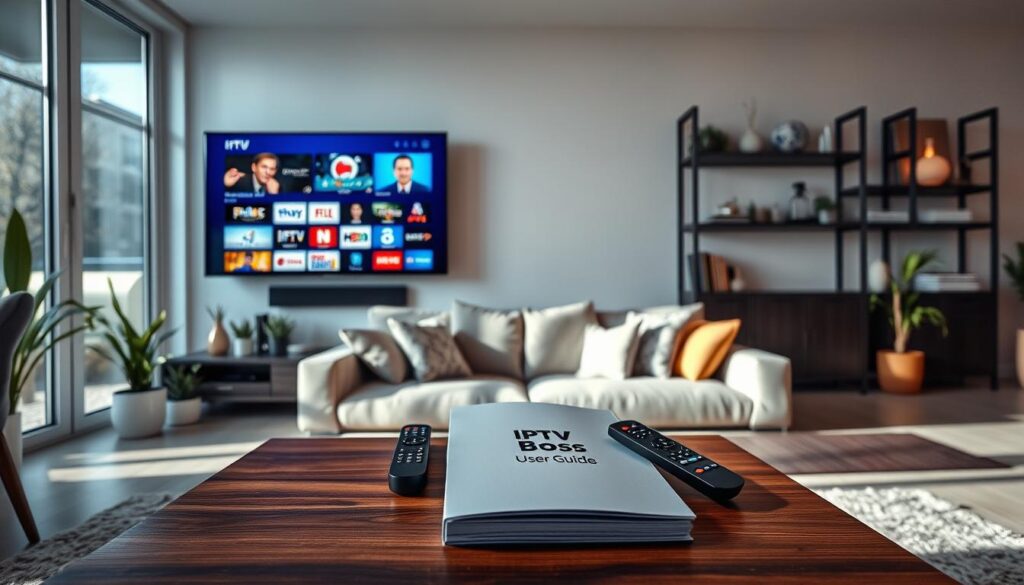
In conclusion, Boss IPTV is a complete streaming solution. It has a vast content library, flexible plans, and works with many devices. It’s a top choice for anyone wanting to improve their viewing experience. For more info, check out the IPTV Boss tutorial.
2. Understanding Your Boss IPTV Subscription Options
Knowing the different Boss IPTV subscription tiers is key to making a good choice. There are many plans to pick from, ensuring you find the perfect match for your viewing habits and household size. Let’s explore the various options available to you.
Single Connection Plans and Pricing
The single connection plan is great for solo viewers. Here’s a look at the prices:
| Duration | Price |
|---|---|
| 3 Months | $23 |
| 6 Months | $34 |
| 12 Months | $54 |
| 24 Months | $89 |
Dual Connection Plans for Multiple Users
The dual connection plan is perfect for couples or small families. It lets two devices stream at once without any hitches. Here’s the pricing:
| Duration | Price |
|---|---|
| 3 Months | $28 |
| 6 Months | $49 |
| 12 Months | $79 |
| 24 Months | $129 |
Three and Four Connection Plans for Larger Households
For bigger families or households, the three and four connection plans are ideal. They let multiple users watch different content at the same time. Here’s the pricing for these plans:
| Connections | Duration | Price |
|---|---|---|
| 3 Connections | 3 Months | $34 |
| 3 Connections | 6 Months | $79 |
| 4 Connections | 3 Months | $49 |
| 4 Connections | 6 Months | $89 |
Selecting the Ideal Plan for Your Requirements
When picking a plan, think about your household size, viewing habits, and budget. Each plan gives full access to Boss IPTV’s vast library. This ensures you get great value. You can also change your plan as your needs evolve, offering flexibility.
By understanding your options, you can choose a plan that fits your lifestyle. Enjoy all the benefits of Boss IPTV.
3. Preparing Your Devices for Boss IPTV Installation
Getting ready is crucial for a smooth Boss IPTV setup. Before starting, make sure your setup is ready. This part will help you check your internet, gather needed tools, and prepare your device.
Checking Your Internet Connection Requirements
For the best Boss IPTV experience, a stable internet is key. For SD streaming, 3 Mbps is the minimum. HD streaming needs at least 5 Mbps, and 4K requires 25 Mbps or more.
For better Wi-Fi, use an Ethernet cable when you can. It cuts down on buffering and lets you enjoy Boss IPTV’s stable servers fully.
Gathering Necessary Equipment and Account Credentials
First, collect all the gear you’ll need. This includes your streaming device, like a Smart TV or Firestick. Don’t forget your remote and any cables you might need.
Also, have your account details ready. You’ll need your username, password, and server URL. Having these ready makes the setup easier.
Ensuring Your Device Is Ready for Installation
Make sure your device is ready for the installation. Update your device’s OS to the latest version. This avoids any compatibility problems.
Then, free up some space on your device for the Boss IPTV app. If you’re using a VPN, turn it off for now. It can cause problems with the service.
By preparing well, you’ll avoid any setup issues. This makes activating your Boss IPTV service smooth and easy.
4. Installing Boss IPTV on Android Smartphones and Tablets
Installing Boss IPTV on your Android device is easy. Just follow these simple steps to start streaming your favourite shows quickly.
Downloading the Boss IPTV Application
First, download the Boss IPTV app. You can get it from the official website or a trusted source. If your device blocks apps from unknown sources, here’s what to do:
- Go to Settings.
- Select Security.
- Enable Unknown Sources to allow installations from outside the Google Play Store.
After changing these settings, download and install the app. Be careful to avoid malware from unofficial sites.
Configuring Your Account and Login Details
Open the app to set up your account. Use the login details given after you subscribe. Enter your:
- Username
- Password
- Server Portal URL
Save these details for easy access later. This makes logging in quicker every time.
Navigating the Android Interface
Once logged in, the app is easy to use. You can:
- Browse through live TV categories.
- Search for specific channels easily.
- Access a vast video-on-demand library.
With over 33,000 live TV channels and a huge movie and series library, finding what you want is simple. You can also customise the app to fit your preferences, making your viewing experience even better.
| Feature | Description | Benefit |
|---|---|---|
| Live TV Channels | Access to over 33,000 channels | Variety of entertainment options |
| Video-on-Demand | 40,000+ movies and 140,000+ TV series | Watch what you want, when you want |
| Streaming Quality | HD, Full HD, and 4K options | Exceptional viewing experience |
By following these steps, you’ll be streaming your favourite content on your Android device in no time. For more details on your subscription, visit here.

5. Setting Up Boss IPTV on Amazon Firestick Devices
Setting up Boss IPTV on your Amazon Firestick is easy. It lets you watch live sports, movies, and series whenever you want. This guide will show you how to make your Firestick ready for third-party apps, install Boss IPTV, and activate your subscription.
Enabling Apps from Unknown Sources on Firestick
You need to allow apps from unknown sources before installing Boss IPTV. This is important because it lets you download apps not in the Amazon App Store.
To do this, follow these steps:
- From the Firestick home screen, navigate to Settings.
- Select My Fire TV or Device.
- Choose Developer Options.
- Toggle Apps from Unknown Sources to On.
Always download apps from trusted sources, like the Boss IPTV website, to keep your device safe.
Installing the Boss IPTV App on Firestick
Now you can install the Boss IPTV app. The easiest way is by using the Downloader app.
Follow these steps:
- Go to the Search option on your Firestick and type in Downloader. Install the app.
- Open the Downloader app and enter the URL for the Boss IPTV APK file.
- Click Download and wait for the installation to complete.
- Once downloaded, click Install to add the app to your Firestick.
With the app installed, you’re almost ready to enjoy your favourite content.
Activating Your Subscription on Firestick
After installing the Boss IPTV app, it’s time to activate your subscription. This is a simple and quick process.
Here’s how to do it:
- Launch the Boss IPTV app from your Firestick home screen.
- Enter your account credentials, including your username and password.
- Verify that the service loads correctly, ensuring you have access to over 33,000 live channels and a vast on-demand library.
If you have problems, like not enough storage or the app not showing, check the troubleshooting tips below.
Troubleshooting Common Firestick Issues
Here are some common issues and how to fix them:
| Issue | Solution |
|---|---|
| Insufficient Storage | Clear cache or uninstall unused apps to free up space. |
| App Not Appearing | Restart your Firestick and check the app list again. |
| Login Errors | Double-check your credentials and ensure your subscription is active. |
By following this IPTV Boss setup guide, you can turn your Firestick into a powerful entertainment hub. Enjoy instant activation and easy setup, bringing you a world of entertainment at your fingertips.
6. Configuring Boss IPTV on Smart TV Platforms
Setting up Boss IPTV on your Smart TV can change how you watch TV. It offers many channels and high-quality content. Knowing how to install and set it up is key. This guide will help you set it up on Samsung, LG, and other Smart TVs for a smooth streaming experience.
Samsung Smart TV Installation Steps
To install Boss IPTV on your Samsung Smart TV, follow these steps:
- Access the Smart Hub by pressing the Home button on your remote.
- Navigate to the Apps section and search for the Boss IPTV application.
- If the app is not available, enable Developer Mode in the settings and sideload the app using a USB drive.
- Once installed, open the app and enter your subscription details to activate.
LG Smart TV Installation Steps
For LG Smart TVs, the process is slightly different:
- Open the LG Content Store from the home screen.
- Search for the Boss IPTV app. If it’s not listed, you can download it via USB.
- Connect the USB drive containing the app to your TV and follow the prompts to install.
- Launch the app and input your account credentials to start streaming.
Other Compatible Smart TV Brands
If you own a Smart TV from brands like Sony, Philips, or Panasonic, the process is generally similar:
- Ensure your TV is connected to the internet.
- Access the app store or settings to download the Boss IPTV app.
- Follow the installation prompts and enter your subscription details.
Regardless of your Smart TV brand, you can enjoy over 33,000 live TV channels, 40,000 movies, and 140,000 TV series in HD, Full HD, and 4K quality. Make sure to adjust your picture settings for optimal viewing.
| Smart TV Brand | Installation Method | Notes |
|---|---|---|
| Samsung | Smart Hub or Sideload | Enable Developer Mode if needed |
| LG | LG Content Store or USB | Check for app availability |
| Sony | Google Play Store | Compatible with Android TV |
| Philips | App Gallery | Ensure internet connection |
| Panasonic | Viera Connect | Follow on-screen instructions |
With these steps, you can easily configure Boss IPTV on your Smart TV, allowing you to enjoy an unparalleled viewing experience. For more information on setting up Boss IPTV, visit this link.
7. Accessing Boss IPTV on iOS Devices
Setting up Boss IPTV on iOS is simple and ensures smooth streaming. This guide will help you download the app, set up your account, and improve your viewing on iPhones and iPads.
Downloading Boss IPTV from the App Store
To start, download the Boss IPTV app from the Apple App Store. Open the App Store, search for “Boss IPTV,” and tap the download button. This way, you get the real app, avoiding security risks.
Setting Up Your Account on iPhone and iPad
After installing, open the app and enter your login details. You’ll need your username, password, and server URL from your sign-up. The app also lets you manage multiple profiles easily, making switching accounts simple.
Tips for Optimal iOS Performance
To get the best streaming, follow these tips:
- Adjust Video Quality: Change the video quality to HD, Full HD, or 4K based on your internet speed. This reduces buffering.
- Enable Background App Refresh: This keeps the Electronic Programme Guide (EPG) up to date, giving you the latest content info.
- Use AirPlay: Cast content to Apple TV or other devices for a bigger screen experience.
- Battery Saving Settings: Adjust settings to save battery during streaming.
- Manage Notifications: Control iOS notifications to avoid interruptions while watching shows.
By following these steps and tips, you’ll enjoy Boss IPTV on your Apple device. You’ll get smooth playback and easy controls. For more on privacy and policies, check our privacy policy.
8. Optimising Your Boss IPTV Streaming Experience
Improving your Boss IPTV setup makes watching TV better. You can tweak settings to enjoy over 33,000 live TV channels, 40,000 movies, and 140,000 TV series in HD, Full HD, and 4K.
Adjusting Video Quality Settings for HD, Full HD, and 4K
Start by adjusting video quality settings. Choose HD, Full HD, or 4K based on your internet speed and device. If you see buffering, try a lower quality.
Boss IPTV’s stable servers reduce interruptions. You can also change settings for saving data or for the best quality. This lets you adjust your viewing to fit your needs.
Managing Your Favourite Channels and Content
Organising your favourite channels and content makes watching TV better. Create lists by genre or region. This helps you find shows quickly.
Bookmarking movies and series is also useful. It lets you easily find your favourite content. This turns your IPTV into a personal entertainment centre.
Using the Electronic Programme Guide Effectively
The Electronic Programme Guide (EPG) helps you navigate Boss IPTV. It shows what’s on now and what’s coming. You can set reminders for live events.
Using the EPG daily makes planning your TV time easier. It improves your viewing experience by fitting TV into your schedule.
9. Troubleshooting Common Boss IPTV Issues
Even the best IPTV services can have problems. Knowing how to fix them can save you time and stress. This section will help you with common Boss IPTV issues and how to solve them.
Resolving Buffering and Playback Problems
Buffering can ruin your fun. But, there are ways to fix it. First, check your internet speed. A fast connection is key for smooth streaming.
Try restarting your router and device if you see buffering. Clearing the app cache can also help. Switching to a wired connection can make things more stable than Wi-Fi.
In the app settings, you can adjust the streaming buffer size. This lets more content load before playing, reducing breaks.
Fixing Login and Activation Errors
Login and activation errors can be annoying. But, they’re often simple to solve. Make sure you’re using the right server URL and that your subscription is active.
If you get locked out, reset your password as the app tells you. If problems keep happening, reach out to support. Give them all the details of your problem, including any error messages.
Addressing Audio and Video Synchronisation Issues
Audio and video not syncing can spoil your watch time. To fix this, adjust the audio delay in the app. If that doesn’t work, try changing the player engine to VLC or MX Player.
Also, keep your device’s firmware updated. Updates can fix playback quality issues.
With these IPTV Boss troubleshooting steps, you can handle common problems with confidence. The aim is to enjoy stable servers and smooth streaming.
10. Conclusion: Maximising Your Boss IPTV Subscription
Your journey with Boss IPTV is just starting. This iptv boss manual has given you the tools to explore a vast world of entertainment. With different subscription plans, you can share access on many devices. This means everyone in your home can watch their favourite shows.
You’ll get to see exclusive live sports, expert commentary, and behind-the-scenes footage. The streaming is smooth, and you can watch premium content on demand. Plus, there are no long-term contracts and instant setup.
Make the most of your subscription by trying new channels and setting up multi-screen viewing. Enjoy stunning 4K content for your movie nights. This will take your viewing experience to a whole new level.
If you have any questions, customer support is here to help. As you use Boss IPTV, you’ll become more confident. This iptv boss manual is your guide to a smooth and fun streaming experience.
FAQ
What is Boss IPTV?
Boss IPTV is a top streaming service. It offers over 33,000 live TV channels, 40,000 movies, and 140,000 TV series. You can watch in HD, Full HD, and 4K quality. It’s great for UK and international viewers, with no contracts and instant start.
How do I set up my Boss IPTV subscription?
First, pick a plan that fits your needs. After buying, you get account details. Follow the guide in the IPTV Boss manual to install the app on your device. Then, enter your login to start streaming.
What devices are compatible with Boss IPTV?
Boss IPTV works on many devices. You can use Smart TVs (Samsung, LG), Android and iOS devices, Amazon Firestick, MAG boxes, and PCs. This means you can watch your favourite shows on any device you like.
What should I do if I experience buffering issues?
If you see buffering, check your internet speed first. Try using a wired Ethernet connection for better stability. Clear the app cache, restart your device, or adjust the streaming buffer size to improve it.
How can I manage my favourite channels on Boss IPTV?
You can manage channels by creating lists in the app. Organise channels by genre or region. Bookmark movies and series for easy access, making your viewing better.
What should I do if I forget my login credentials?
If you forget your login, check your confirmation email for your details. If you still can’t get in, contact customer support for help.
How do I update the Boss IPTV app?
To update the app, check the app store on your device for updates. If you got the app from somewhere else, download the latest APK from the Boss IPTV website and reinstall it.
Can I use Boss IPTV on multiple devices simultaneously?
Yes, Boss IPTV has plans for multiple connections. Depending on your plan, you can stream on several devices at once. It’s perfect for families or households with many viewers.
What should I do if I encounter audio and video synchronisation issues?
For audio and video sync problems, try adjusting the audio delay in the app. Also, make sure your device’s firmware is current. Changing the player engine in the app settings might help too.
How can I contact customer support for further assistance?
For help, visit the Boss IPTV website and find the ‘Contact Us’ section. There, you can send a query or find live chat or email support for any issues.