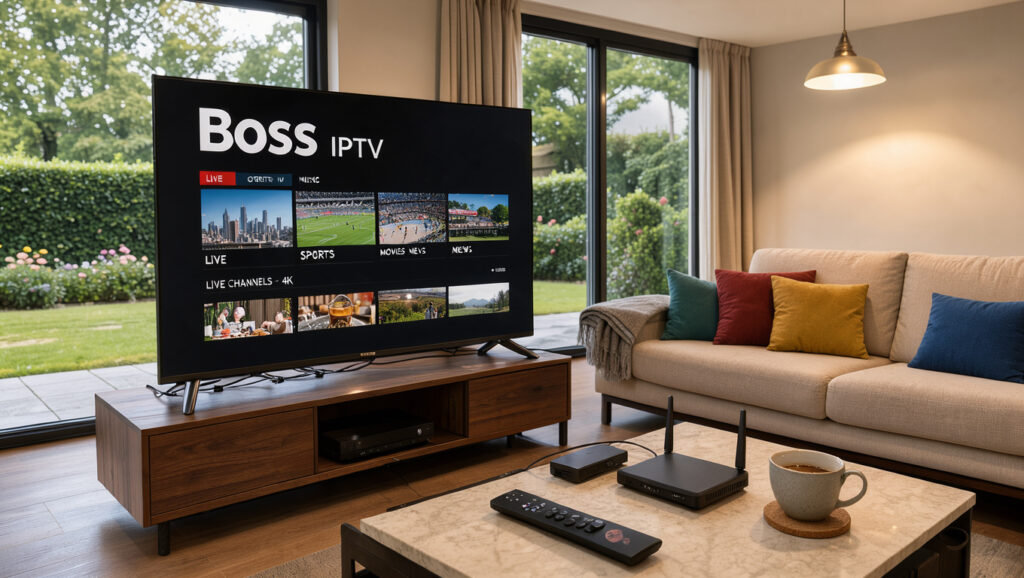
After a long day, you want to relax with something good to watch. You grab the remote, sit in your favorite chair, and scan many channels. Yet nothing catches your eye, and traditional cable may no longer meet your needs.
With Boss IPTV, you get over 33,000 live TV channels, 40,000 movies, and 140,000 TV series. Watch them in HD, Full HD, or 4K quality through ultra-stable servers. Instant activation, no contracts, and no hidden fees make it flexible for premium entertainment.
Whether you live in the United States, the United Kingdom, or elsewhere, this guide explains each setup step. It covers plan selection, internet preparation, and compatible player installation. You will add your account details and test playback before watching shows and movies.
This tutorial helps first-time IPTV users and experienced streamers. The simple setup supports live television streaming, movies, series, and sports across many devices.
Key Takeaways
- Access to over 33,000 live TV channels and 140,000 series.
- Ultra-stable servers for a seamless viewing experience.
- No contracts, instant activation, and easy setup.
- Compatible with Smart TVs, Android, iOS, Firestick, MAG, and PC.
- Designed for both beginners and experienced users.
1. Understand What Boss IPTV Offers
Boss IPTV combines many live channels with a complete video-on-demand library. Enjoy scheduled shows, movies, and TV series that match your viewing preferences.
Boss IPTV offers over 33,000 live TV channels, more than 40,000 movies, and 140,000 TV series. Choose live sports, blockbuster films, or binge-worthy series from this large catalog.
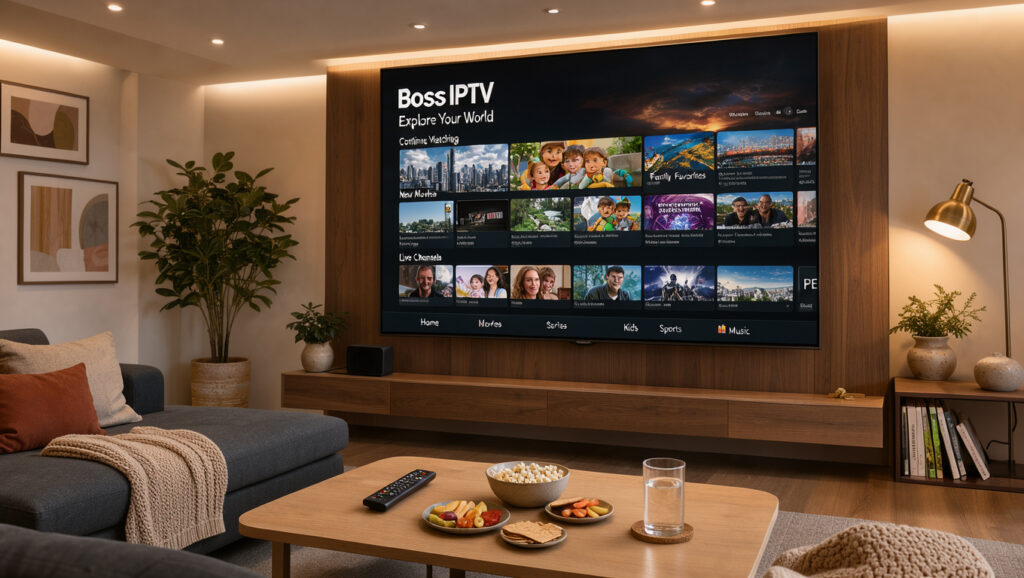
Explore the channels and on-demand library
Boss IPTV offers channels across many genres and interests. Find news, sports, movies, and documentaries for viewers in the US, UK, and beyond. Its video-on-demand library lets you choose what to watch and when.
Channel availability and regional coverage may vary by location and device. Supported resolution options include HD, Full HD, and 4K.
Know what to expect from streaming quality and coverage
Boss IPTV uses high-performance, ultra-stable servers for streaming. This setup helps reduce buffering and interruptions. Network congestion, Wi-Fi performance, and device limits can still affect playback.
For smooth playback, make sure your hardware and internet connection support the chosen resolution. HD, Full HD, and 4K need suitable source content, network capacity, and player support.
“With Boss IPTV, you can enjoy a seamless streaming experience with a wide range of content at your disposal.”
In summary, Boss IPTV offers many channels and an extensive video-on-demand library. It suits viewers who want a stronger streaming experience. Learn more about the service at this link.
2. Choose an IPTV Subscription Plan
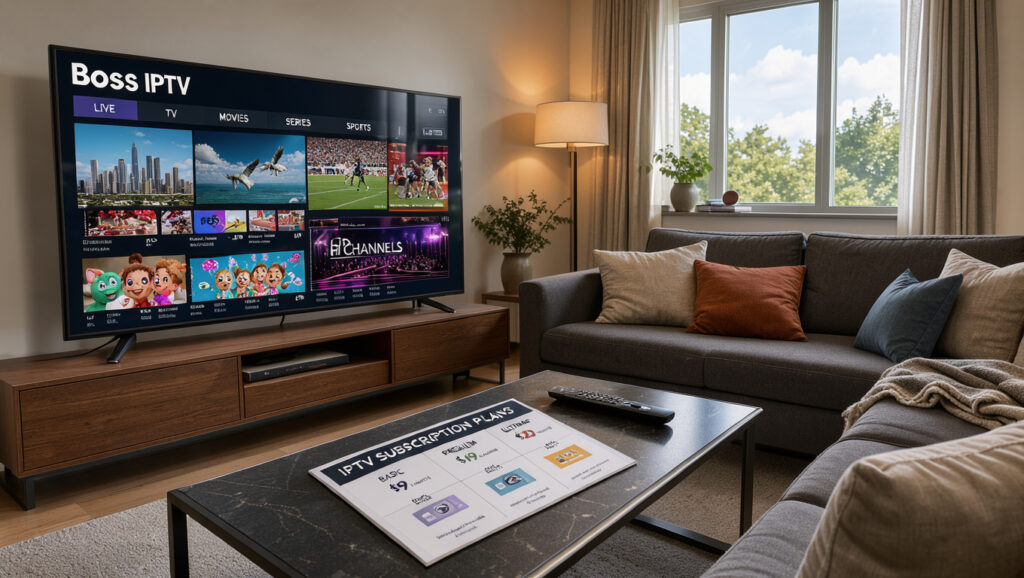
Choosing the right IPTV subscription plan helps you enjoy better viewing. These IPTV subscription plans offer different features, so choose one that fits your needs. The sections below compare each connection option.
Compare the 1-connection plans
If you’re a solo viewer, the 1-connection plan may suit you. Priced at just $15, it provides all channels and on-demand content without interruptions.
Compare the 2-connection plans
The 2-connection plan suits couples or small families. For $34, you get three months of service plus one month free. It supports two devices streaming at the same time.
Compare the 3-connection plans
The 3-connection plan works well for larger households. At $44, you get six months of access plus two months free. Everyone can enjoy favorite shows without conflicts.
Compare the 4-connection plans
The 4-connection plan suits bigger families or people who host friends. It provides four simultaneous streams for $69, with three months free on a yearly subscription. Everyone can watch preferred content without hassle.
Match plan length and connections to your household
Think about how your household watches TV. If you often watch together, choose a multi-connection plan. If you usually watch alone, one connection may be enough.
Also consider subscription length because longer plans often include extra bonuses.
To explore all available IPTV subscription plans and their benefits, visit our pricing page. The right plan can greatly improve your streaming experience.
3. Prepare Your Device and Internet Connection
Before setting up Boss IPTV, make sure your device and internet connection are ready. This preparation improves streaming, so you can watch live channels, movies, and series without interruptions.
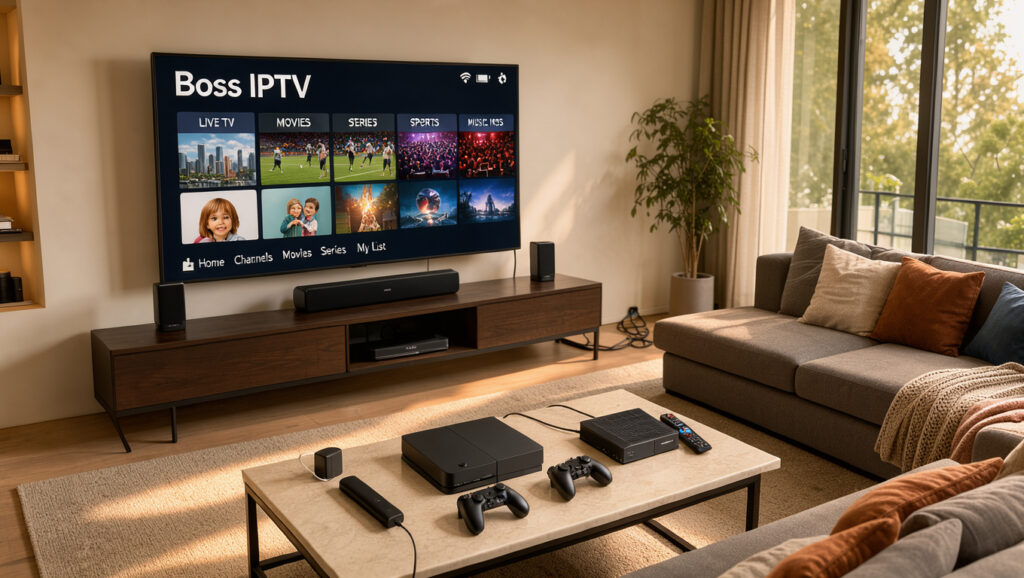
First, confirm your streaming device works with Boss IPTV. The service supports Smart TVs, Android devices, iPhones, iPads, Firestick, MAG devices, and PCs. Know your device’s operating system and available app store for smooth installation.
Confirm that your streaming device is compatible
Check whether your device appears among the compatible streaming devices. This can help you avoid setup problems. Each platform may have specific requirements, so confirm your device meets them.
Check internet bandwidth and network stability
Next, check your internet bandwidth and network stability. Your connection speed can strongly affect streaming quality. A stable broadband connection is recommended for optimal performance.
- A wired connection is preferable for Smart TVs or streaming boxes to minimize interruptions.
- Ensure your Wi-Fi signal is strong if you’re using a wireless connection.
- Consider your household’s simultaneous streaming needs, as this will affect the required bandwidth.
Remember, the internet bandwidth requirements depend on your chosen streaming resolution. Higher resolutions need more bandwidth, so plan accordingly.
Gather your subscription details and choose a player
Finally, gather your subscription details, including your username, password, portal URL, M3U playlist URL, or Xtream Codes. The needed information depends on your subscription method and lets you access your content.
Choosing the right IPTV player is also important. Boss IPTV provides content, while the IPTV player displays it. Choose a player compatible with your device and suited to your streaming needs.
With these preparations complete, you are ready to continue setup. For detailed instructions on how to set up Boss IPTV on various devices, visit this guide.
4. Set Up Boss IPTV on a Smart TV
Setting up Boss IPTV on your Smart TV is simple and opens access to varied entertainment. You can watch live channels, movies, and series in HD, Full HD, or 4K where available. Follow these steps to begin.
Step 1: Install a compatible IPTV player from your TV’s app store
Open your Smart TV’s official app store. Search for a reputable IPTV player that works with your television. Popular options include Smart IPTV, IPTV Smarters, and others; install and launch your chosen app.
Step 2: Add the playlist details provided with your subscription
The app may ask for your playlist details when you launch it. These details may include an M3U URL, Xtream Codes login, or portal address. Use only information from your legitimate subscription, and preserve every mark and capital letter.
Step 3: Load the channels and test live television streaming
After saving your playlist information, let the app load its channels and electronic program guide. Then select a familiar channel to test live television streaming and check these items:
- Correct stream selection
- Audio settings
- Remote control functionality
- Picture quality
If a 4K title is unavailable, remember that resolution depends on more than your television. It also depends on the source, player, plan, and supported content.
“The best way to predict the future is to create it.”
Follow these playlist setup instructions to enjoy smooth streaming with Boss IPTV on your Smart TV. For more assistance, visit our FAQ page.

5. Set Up Boss IPTV on Android
Setting up Boss IPTV on Android is simple and gives you many entertainment choices. You get over 33,000 live TV channels, 40,000 movies, and 140,000 TV series in a large video-on-demand library. Follow these steps for a better streaming experience.
Step 1: Install a compatible IPTV app on your Android device
Download a compatible IPTV app from the Google Play Store or another trusted source. Before installing it, check device compatibility, privacy information, update history, and required permissions.
Step 2: Enter your subscription or playlist details
Open the app and choose the login method that matches your subscription. You can use a username and password, Xtream Codes API, M3U playlist, or another format from your service.
Check every character to prevent login issues. Save your profile, then let the app sync channel groups and the video-on-demand library.
Step 3: Check channel playback and video-on-demand access
Test the setup by checking a live channel first. Then explore a movie and a TV series, and check loading times, audio, subtitles, aspect ratio, and resume controls.
Run these tests over Wi-Fi first. If your device and data plan allow, compare performance on a stable mobile connection.
These steps help you set up Boss IPTV on Android and explore its rich entertainment catalog. Enjoy live sports, movies, and series that match your viewing preferences.
6. Set Up Boss IPTV on iPhone or iPad
Setting up Boss IPTV on your iPhone or iPad is simple and opens access to varied entertainment. Watch live channels, movies, series, sports, and international content with high-quality streaming while traveling. Follow these steps to get started.
Step 1: Choose and install a compatible iOS player
Choose a compatible IPTV player from the Apple App Store. Popular options include GSE Smart IPTV, IPTV Smarters, and Perfect Player. App names may differ, so confirm your player supports the playlist or account format provided after subscription activation.
Step 2: Add your playlist or account information
After installation, add your playlist or account information. Usually, you enter the M3U URL or portal details provided by boss iptv. Enter the details accurately, then let the app finish synchronization and its initial setup.
Step 3: Test playback over Wi-Fi and mobile data
Test playback after setting up your IPTV player. Connect to reliable Wi-Fi, then check live channels, movies, and series for smooth playback. Test pause, seek, captions, and full-screen controls to confirm everything works correctly.
Next, test streaming with mobile data. Cellular streaming is convenient, but high-resolution video can use substantial bandwidth. If quality differs between Wi-Fi and mobile data, network conditions usually cause the issue, not your boss iptv account.
| Device | Compatible Players | Key Features |
|---|---|---|
| iPhone | GSE Smart IPTV, IPTV Smarters | Multi-format support, user-friendly interface |
| iPad | Perfect Player, IPTV Extreme | Customizable layouts, EPG support |
| Both | IPTV Player, VLC for Mobile | High-quality streaming, various channel options |
These steps help you set up boss iptv on your iPhone or iPad for smooth streaming. For issues or further assistance, visit the refund policy page for more information.
7. Set Up Boss IPTV on Firestick
Turn your Firestick into a hub for live sports, movies, and series with Boss IPTV. This simple setup lets you access many channels and on-demand content. Follow these playlist setup instructions to begin.
Step 1: Find or install a compatible IPTV player
Go to your Firestick home screen and use search to find a compatible IPTV player. Use the official Amazon app marketplace to find recognized applications. If the player is unavailable there, follow its developer’s installation instructions.
Step 2: Sign in or add the playlist supplied with your subscription
After installing the IPTV player, open the app and find the sign-in or playlist option. Enter the credentials or URL supplied with your Boss IPTV subscription. Save your profile for easier access later.
Step 3: Load the guide and test live channels and on-demand titles
After saving your profile, wait for the channel groups, guide, movies, and series to load. This may take a few minutes. Once loaded, test a live channel and an on-demand title.
Check the audio output and picture quality. If you find issues, restart your Firestick or check your internet connection.
To stream smoothly, confirm that your Firestick uses the intended Wi-Fi network. Check available storage and app updates. If the playlist does not refresh, restart the device.
| IPTV Player | Features | Rating |
|---|---|---|
| Perfect Player | Customizable interface, EPG support | 4.5/5 |
| IPTV Smarters | User-friendly, multi-screen support | 4.7/5 |
| Kodi | Open-source, extensive add-ons | 4.6/5 |
Following these playlist setup instructions can help you stream smoothly on your Firestick. Boss IPTV claims to offer instant activation and high-performance servers for a smooth experience across all your viewing needs.
8. Set Up Boss IPTV on a MAG Device
Setting up Boss IPTV on a MAG device is simple and opens many streaming options. Follow these steps to access live television, movies, and series.
Step 1: Connect the MAG device and open its portal settings
Connect your MAG device to your television and router. Select the correct HDMI input on your TV. Turn on the device, open Settings, and find the portal settings.
Step 2: Enter the portal information provided for your subscription
In portal settings, find the field for the portal URL. Enter the exact portal information provided with your subscription, and check it carefully. Incorrect details may block access, so do not replace or change the URL.
Step 3: Restart the device and confirm channel access
Save the portal settings, then restart your MAG device. After restarting, the device contacts the portal and loads the channel interface. Check that the portal opens, channel groups appear, live channels play, and your remote responds normally.
If access fails, check your Ethernet or Wi-Fi connection first. Check the portal URL, device time settings, and subscription activation. If problems continue, contact customer support for help.
| Step | Action | Details |
|---|---|---|
| 1 | Connect Device | Connect MAG to TV and router, select HDMI input. |
| 2 | Open Portal Settings | Navigate to settings and locate portal URL field. |
| 3 | Enter Portal Info | Input the exact portal URL provided by your subscription. |
| 4 | Restart Device | Restart to retrieve channel interface and verify access. |
Follow these steps to set up your MAG device for Boss IPTV and enjoy many compatible streaming devices. For more information about our services, read our privacy policy.
9. Set Up Boss IPTV on a PC
Setting up Boss IPTV on your PC can greatly improve streaming. You can watch live television, sports, movies, series, and international content.
Step 1: Select a compatible IPTV player for your computer
First, choose a desktop IPTV player that supports your operating system. Make sure it accepts your subscription format, such as an M3U file or Xtream Codes credentials. Download software from a trusted publisher to avoid security risks.
Step 2: Import your playlist or enter your account details
After installing the player, import your playlist or enter your account details. Follow the prompts to add the required information. This step gives you access to the channels and content in your subscription.
Step 3: Test the electronic program guide and playback controls
After loading your content, test the electronic program guide. Use it to browse channels, check program times, and move between categories. Also, explore these controls:
- Full-screen mode
- Volume controls
- Subtitles
- Pause and seek options
- Stream switching
Your computer’s performance, browser or player hardware acceleration, antivirus settings, and network conditions can affect playback quality. This matters most when multiple high-resolution streams or applications run at once.
“The electronic program guide is your roadmap to navigating through the vast array of content available.”
10. Finish Playlist Setup and Customize Playback
Completing your playlist setup creates a smoother, faster, and more reliable viewing experience. Organize channels, save favorites, and hide unwanted categories when your player allows it. This setup can improve how you use the electronic program guide.
Adjust playback settings to match your connection. Your device may support HD, Full HD, or 4K. Start with a suitable resolution to avoid buffering, then review these settings:
| Setting | Description | Recommended Value |
|---|---|---|
| Buffer Size | Controls how much data is preloaded | Medium |
| Decoder Mode | Adjusts how video is processed | Hardware |
| Aspect Ratio | Sets the display ratio of video | 16:9 |
| Subtitles | Enables subtitle options | On/Off |
| Audio Tracks | Selects preferred audio language | Default Language |
Make sure your IPTV subscription plans fit your viewing habits. If several household members watch at once, check your plan’s allowed simultaneous streams to prevent rejected streams and account conflicts. Plans usually include one, two, three, or four connections, and longer subscriptions may offer promotional free months.
Customizing your playlist and playback settings creates a viewing experience suited to you. For more details about available plans, visit Boss IPTV subscription options.
11. Fix Common Setup and Streaming Problems
Boss IPTV setup problems can feel frustrating, but most common issues are easy to fix. This guide covers playlist setup instructions, login errors, and playback buffering. These steps can help you enjoy your favorite shows again.
Resolve login, playlist-loading, or missing-channel issues
If login fails, confirm your username and password first. Check that you entered the portal URL and playlist URL correctly. Also confirm account activation and your device’s date and time.
For missing channels or an empty playlist, refresh your account. Select the correct profile and update your player. Also confirm that your subscription format matches your player’s requirements.
Improve buffering and unstable playback
Buffering can harm your viewing experience. First, test your internet connection speed. Move closer to your router or use an Ethernet connection for better stability.
Pause other downloads to free up bandwidth. Try lowering video quality in your player settings if buffering continues. Closing background apps can also improve playback.
Restart your router and streaming device when needed. Remember, internet bandwidth requirements rise with HD, Full HD, and 4K streaming, especially with multiple active streams.
Check device, app, and network settings before contacting support
Before contacting support, check your app permissions and available storage. Look for firmware updates and inspect HDMI connections. Also check parental or network restrictions that could affect your service.
If problems continue, contact support with your device model, player name, and error messages. Include your connection type and affected channels to help support respond effectively.
| Issue | Common Fixes | Notes |
|---|---|---|
| Login Issues | Check username/password, portal URL | Ensure correct device date/time |
| Missing Channels | Refresh account, update player | Verify subscription format |
| Buffering | Test internet speed, reduce video quality | Use Ethernet if possible |
| Playback Problems | Restart device, check app permissions | Look for firmware updates |
For detailed buffering guidance, visit this resource. For more help, explore this site for additional solutions.
Conclusion
Boss IPTV is a flexible choice for anyone seeking live television streaming. It offers over 33,000 live TV channels, 40,000 movies, and 140,000 TV series in HD, Full HD, and 4K. It supports Smart TVs, Android, iOS, Firestick, MAG, and PCs, meeting diverse viewing preferences.
Choosing Boss IPTV means no contracts, instant activation, and easy setup. Choose a plan with one to four connections, then confirm your device and network compatibility. Follow device-specific steps to install your IPTV player, enter subscription details, and load your playlist or portal.
After setup, test live and on-demand content, organize favorites, and adjust playback quality. Stay within your plan’s simultaneous stream limit for optimal performance. Boss IPTV offers flexible, quality entertainment across multiple platforms.
FAQ
What is Boss IPTV?
Boss IPTV offers over 33,000 live TV channels, 40,000 movies, and 140,000 TV series. It offers HD, Full HD, and 4K quality to viewers in the United States, the United Kingdom, and international markets. The service provides flexible live television streaming and on-demand entertainment.
What devices are compatible with Boss IPTV?
Boss IPTV works with Smart TVs, Android devices, iOS devices, Firestick, MAG devices, and PCs. You can enjoy live channels, movies, and series on your preferred platform.
How do I choose an IPTV subscription plan?
Choose an IPTV subscription plan based on your needs, with 1, 2, 3, or 4 connections. Promotional options include 3 months for $34 and 6 months for $44. They also include 12 months for $69, with additional free months for each option.
What are the internet bandwidth requirements for Boss IPTV?
Bandwidth needs depend on the resolution you want to stream. HD needs at least 5 Mbps, Full HD needs 10 Mbps, and 4K may need 25 Mbps or more. A stable broadband connection is essential for optimal performance.
How do I set up my playlist for Boss IPTV?
To set up your playlist, enter the M3U URL or Xtream Codes provided with your subscription into a compatible IPTV player. Follow your device’s setup instructions to ensure proper configuration.
What should I do if I experience buffering issues?
If buffering occurs, check your internet connection. Use a stable Wi-Fi signal or wired connection, and consider lowering video quality. Pause other downloads or close background apps that may use bandwidth.
Can I access on-demand content with Boss IPTV?
Yes, Boss IPTV provides a large video-on-demand library. You can watch movies and TV series whenever you want, along with live television.
What is the electronic program guide (EPG) and how do I use it?
The electronic program guide (EPG) lets you browse channel listings and program schedules. Use it to see current programs, upcoming shows, and on-demand content.
What should I do if I can’t find a channel in my playlist?
If a channel is missing, first ensure your subscription is active and your playlist URL is correct. Refresh the account or check for updates to your IPTV player.
Are there any contracts or commitments with Boss IPTV?
No, Boss IPTV does not require long-term contracts. Choose a plan based on your preferences, with the flexibility to cancel at any time.